Putting a studio’s schedule on the site you build

For Frontmat partners. The steps match the ones a studio owner sees in their own admin.

Everything a studio’s schedule needs to live on the site you build: one snippet, the same on every builder, and on most of them members book without leaving the page. You do not need access to the studio’s admin to build it.

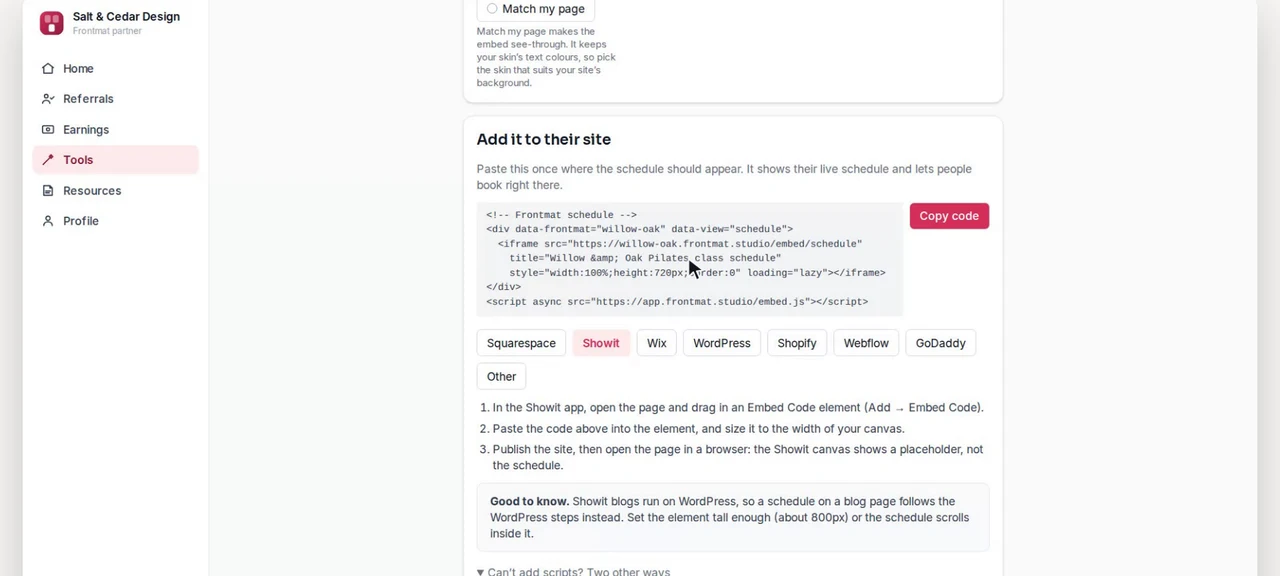
Tools in the partner portal: a studio’s embed code and the Showit steps under itWatch it done · 0:50Two minutes of the tour cover this pageBuild an embed at 0:50, check an install at 1:03.
Pick your builder
Squarespace Showit Wix WordPress Shopify Webflow GoDaddy Other

Get the code

  1. Open Tools in your partner portal and type the studio’s address, the part before .frontmat.studio.
  2. Pick what to show: the full schedule, the next few classes, a buy page, or the member account. Filter to a class type, an instructor or a location if the page calls for it.
  3. Copy the code. It is two lines: a container with an iframe, and a loader script.

The loader is what makes booking happen inside your page rather than sending the member to the studio’s Frontmat address and back. Paste both lines, not just the iframe.

Tools › Build an embed: the code for willow-oak, and the builder tabs under it
Tools › Build an embed. The same builder a studio owner has under Settings › Website, for any studio.

Put it on the site

Squarespace

  1. Open the page where the schedule should live and click an insert point.
  2. Choose Code (not Embed), paste the code above, and leave the type as HTML.
  3. Save. Then open the page logged out: Squarespace hides code blocks from the editor.

Good to know. Code blocks need the Core plan or above. On Basic, use the link or button below instead. Optional: paste the last line once into Settings → Advanced → Code Injection → Footer, and every page has it.
Showit

  1. In the Showit app, open the page and drag in an Embed Code element (Add → Embed Code).
  2. Paste the code above into the element, and size it to the width of your canvas.
  3. Publish the site, then open the page in a browser: the Showit canvas shows a placeholder, not the schedule.

Good to know. Showit blogs run on WordPress, so a schedule on a blog page follows the WordPress steps instead. Set the element tall enough (about 800px) or the schedule scrolls inside it.

Wix

  1. In the editor, click Add Elements → Embed Code → Embed HTML.
  2. Choose Code, paste the code above, and click Update.
  3. Stretch the element to the width of your page and give it about 800px of height.
  4. Publish.

Good to know. Wix's HTML element runs our code in its own box, so booking opens on your Frontmat page and comes back here. For booking inside the page, Wix's Custom Element (premium plans) can hold the same code.

WordPress
  1. Edit the page and add a Custom HTML block where the schedule should go.
  2. Paste the code above into the block.
  3. Update the page and view it.

Good to know. WordPress.com sites need the Business plan or above for HTML embeds; below that, use the link or button below. Self-hosted WordPress works on any plan.

Shopify
  1. In your Online Store, go to Pages and open (or add) the page.
  2. In the editor toolbar click <> (Show HTML) and paste the code above.
  3. Save and view the page.

Good to know. The schedule fits whatever width your theme gives the page; there is nothing to configure. If your theme uses sections, a Custom Liquid section takes the same code.

Webflow
  1. Drag an Embed element (Add → Components → Embed) where the schedule should go.
  2. Paste the code above and click Save & Close.
  3. Publish.

Good to know. Custom code needs a paid site plan (CMS or above). The Designer shows a placeholder; the schedule appears on the published site.

GoDaddy
  1. In the website builder, add a section and choose HTML.
  2. Paste the code above into the Custom Code box.
  3. Set the height to about 800 and publish.

Good to know. GoDaddy's HTML section runs our code in its own box, so booking opens on your Frontmat page and comes back here.

Other
  1. Paste the code where you want the schedule; any place that accepts HTML works.
  2. If your site only allows an iframe, use the "Iframe only" code below.
  3. If your site sets a Content-Security-Policy, allow frame-src https://*.frontmat.studio.

Good to know. If nothing appears, check that your page is served over https://. Browsers block a secure embed on an insecure page.

Check your work

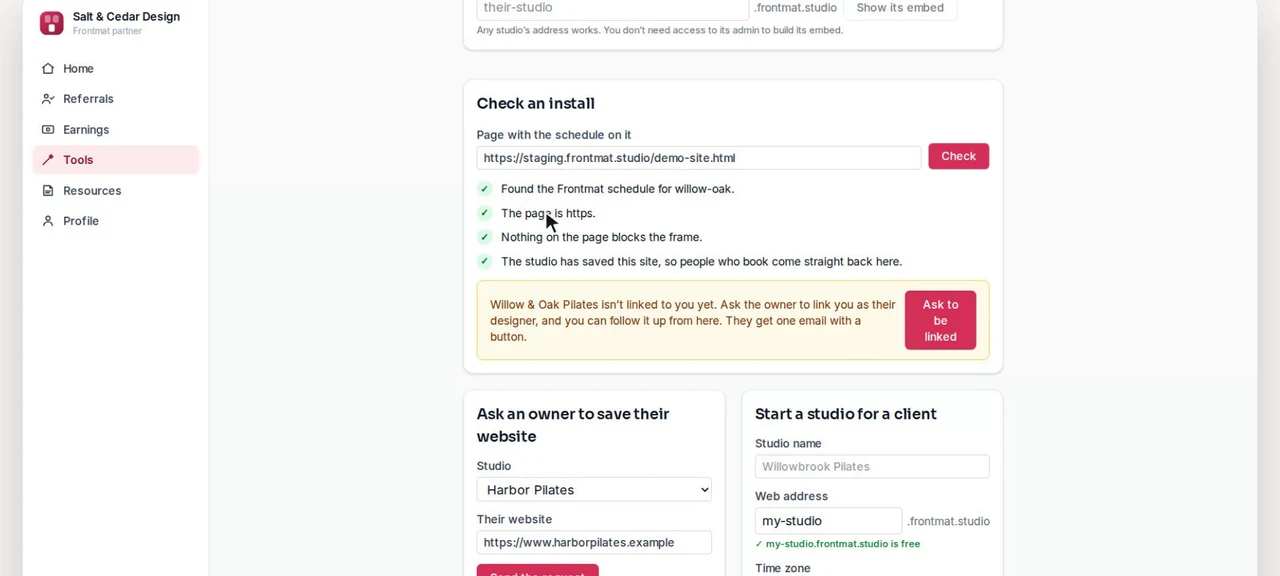
Back in Tools, paste the page’s address into Check an install. It fetches the page and reads it the way a browser will: whether the schedule is there, whether the page is https, whether anything blocks the frame, which builder it is on, and whether the loader made it in.

One check needs the owner: the studio’s website address has to be saved in its own settings before booking can stay inside your page. You cannot save it for them, but the checker can ask them for you, and the email says exactly what it does.

Check an install: four green lines for the demo studio’s site, and an offer to ask its owner to link you
Tools › Check an install, on the demo studio’s own site. A warning names what to fix and, where it is the owner’s to do, offers to ask them.

Two things that are not the snippet

  • A booking link for an Instagram bio, a Google Business Profile or an email signature. Works everywhere, nothing to install.
  • An account link for the site’s menu. Once a member has signed in on the site it reads “My account”.

When something looks wrong

  • Nothing appears. The page must be served over https. Browsers block a secure embed inside an insecure page.
  • It appears, but booking opens a new page. Either the loader line is missing, or the builder keeps embeds in their own box. Both are fine; booking comes back to your page afterwards.
  • The schedule is empty. The studio has no classes in the next few weeks, or its classes open for booking closer to the date. That is a setting in the studio’s admin, not in your code.
  • Still stuck. Reply to any email from us, or write to hello@frontmat.studio. A founder answers.

Not a partner yet? Applying takes about five minutes, and a founder reads every application.

Apply to the partner program