Help · Schedule
Draw your room so members pick a spot
If members choose their own reformer, bike or mat, draw the room once and point classes at it. Members then book a numbered spot from a map, and the class's capacity is the number of bookable spots.
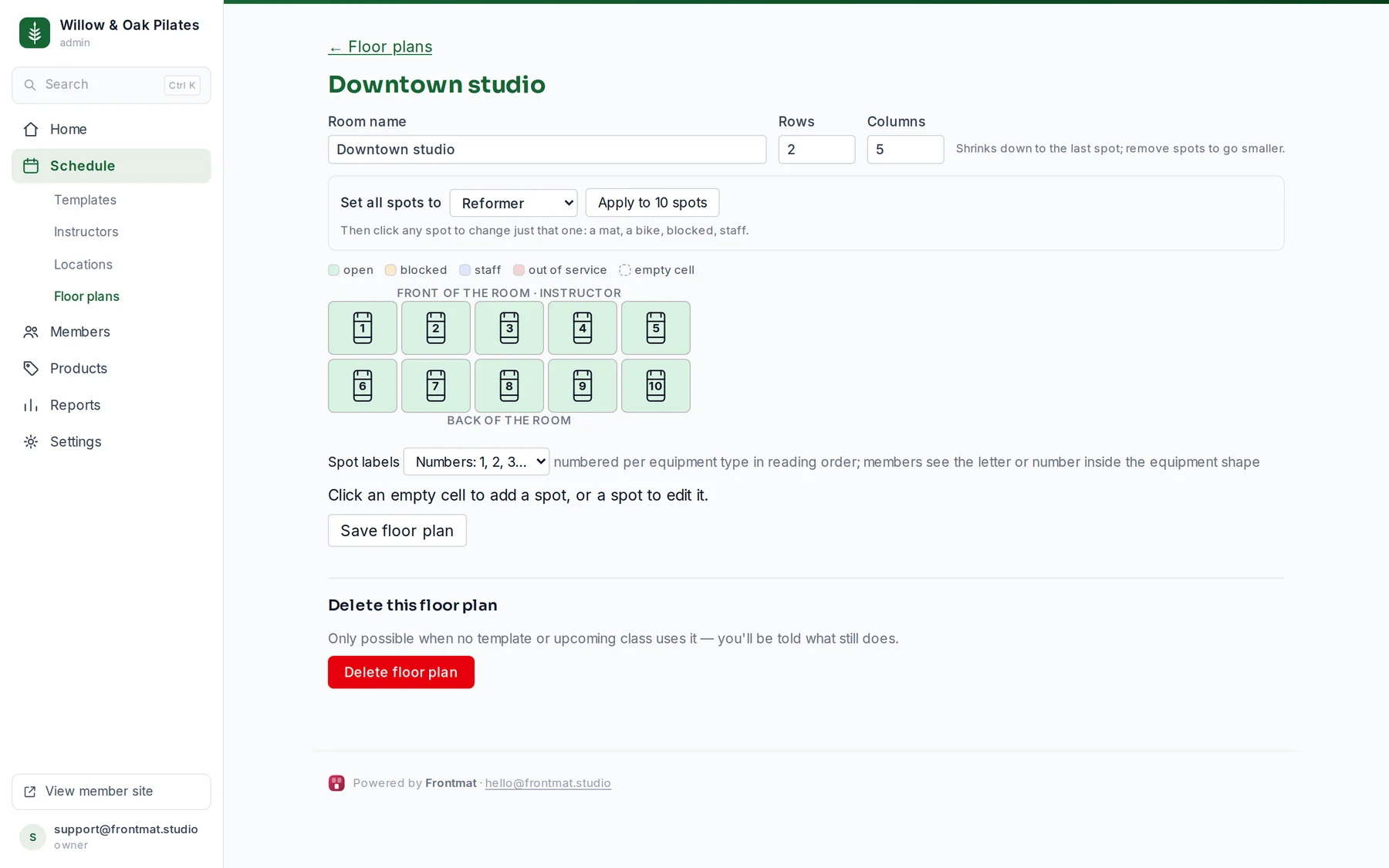
- Open Schedule › Floor plans. Under New floor plan, give the room a Name and set Rows and Columns, then click Create plan. Start a little larger than the room; it only shrinks later.
- In the editor, pick what most of the room is under Set all spots to and click Fill to fill every empty cell with it. Or click an empty cell to add one spot at a time.
- Click any spot to change just that one: its Type (mat, reformer, bike, tower, chair, barre, treadmill, rower, or a plain spot), its Status, or Remove spot.
- Choose Numbers or Letters under Spot labels. Labels are automatic, per equipment type, in reading order from the front of the room, so a room reads Reformer 1, Reformer 2, Mat 1.
- Click Save floor plan. Every class on this room takes the new spot count.
Using the map on a class
On the class template, choose Pick a spot under How members book and pick the Room map. Capacity comes from the map. You can also Draw a new room from inside the template form without losing what you typed.
Spot status
- Open is bookable.
- Blocked and staff spots are on the map but members cannot book them.
- Out of service spots do not count toward capacity at all.
- To block a spot for one class only, open that class and tap the spot under Spots; tap it again to unblock. You can also move a booked member to another open spot there.
Good to know
- A spot keeps its label once it has one, so removing a spot never renumbers the ones people have booked. Set all spots and switching between numbers and letters do renumber everything.
- A map can be deleted only when no template or upcoming class uses it; the page tells you which still do.
- With more than one location, a class and its map must be at the same location.
- Open-room classes need no map: members book a place and everyone settles in anywhere.