Run a class from the roster: check in, no-shows, walk-ins
Every class has a page with its roster. Home lists today's classes with a roster link beside each, and the week view opens the same page when you click a class.
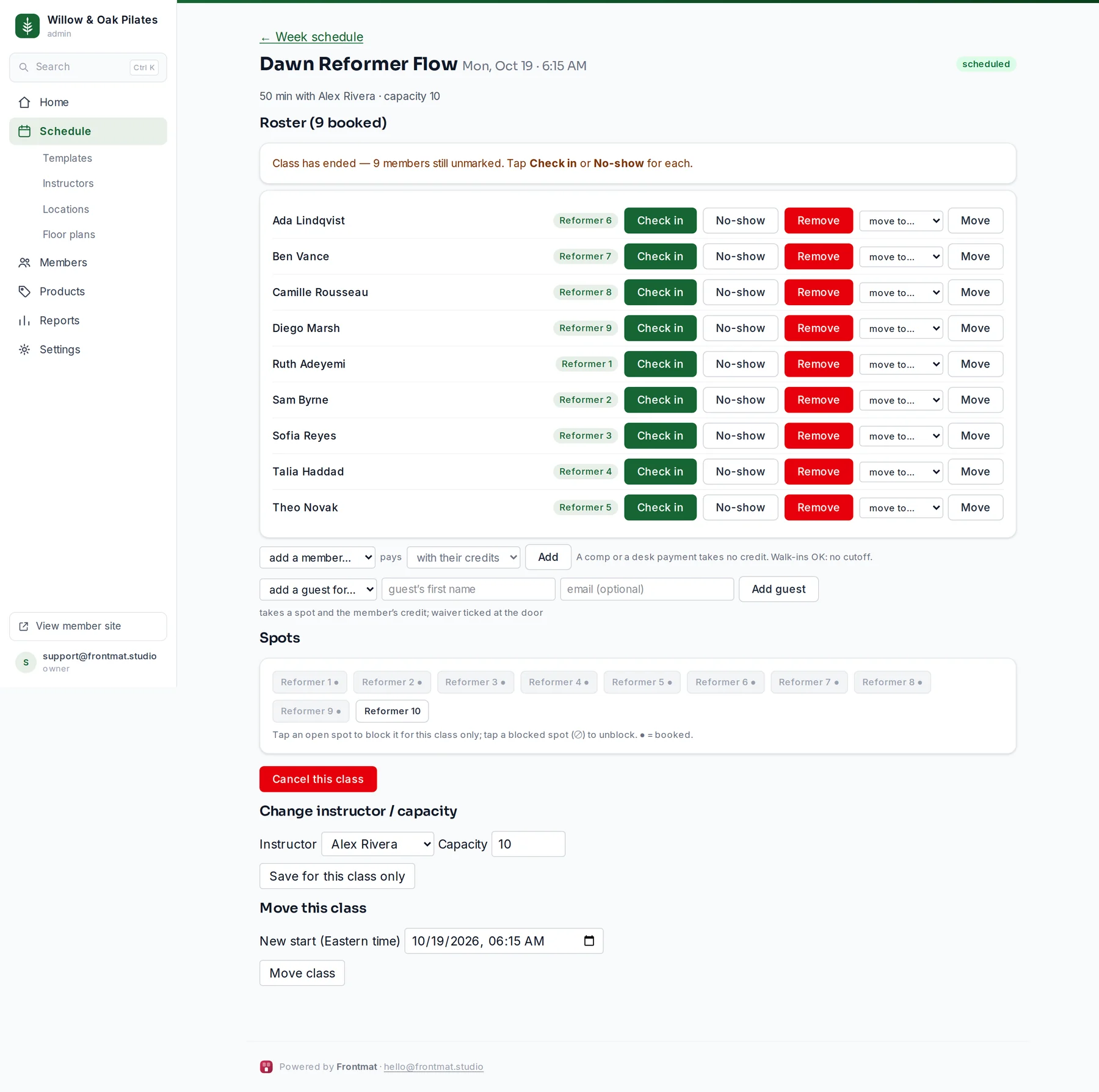
Checking in
Click Check in beside each member as they arrive. Check-in opens at the start of the class's day. Undo reverses a check-in. Once the class has ended, Home shows unmarked after that class until everyone has a mark.
No-shows
Once the class has started, No-show marks someone who never came. What it costs them follows the pack or membership they booked with: the usual rule for a pack is that the credit is used, and for an unlimited membership that the no-show fee is charged. A fee needs a card on file; without one, the credit is used instead. The message beside the row says what happened.
Fees hold for 24 hours before they charge, so you can click Waive while one is pending, and every member's first late cancel or no-show in 30 days is forgiven on its own.
Walk-ins and desk bookings
Under the roster, pick someone under add a member…, choose how they pay, and click Add:
- with their credits uses one of their credits, the same as booking from the app.
- as a comp (free) takes no credit.
- at the desk takes no credit either; you collect the money however you do.
Staff bookings have no cutoff, so a walk-in can be added right up to the start. The class still has to have room. If the member has no credits, the message offers a comp or a desk booking.
Removing a booking
Remove cancels someone's booking from the desk. It always gives the credit back and never charges a fee, and the member gets an email saying the studio removed the booking. If the class was full, the first person on the waitlist is offered the spot.
Guests
When guests are on under Settings › Policies, a booked member can bring a friend: pick the member under add a guest for…, type the guest's first name and, if you have it, their email, then Add guest. The guest takes a spot and the member's credit. At the door, Mark waiver signed, and after they come, Make them a member.
For this class only
- Change instructor / capacity, then Save for this class only: a cover teacher or a smaller room for one day. The class is then marked edited by hand, and template changes leave it alone.
- Under Spots, tap a spot to block it for this class, or move a booked member to another open spot.
- Waitlist lists who is waiting and whether a claim offer is out.