Add a class that repeats
A class that runs every week is a template. Save it once and every future class follows: the next 90 days go on the schedule the moment you save, and each day after that adds another.
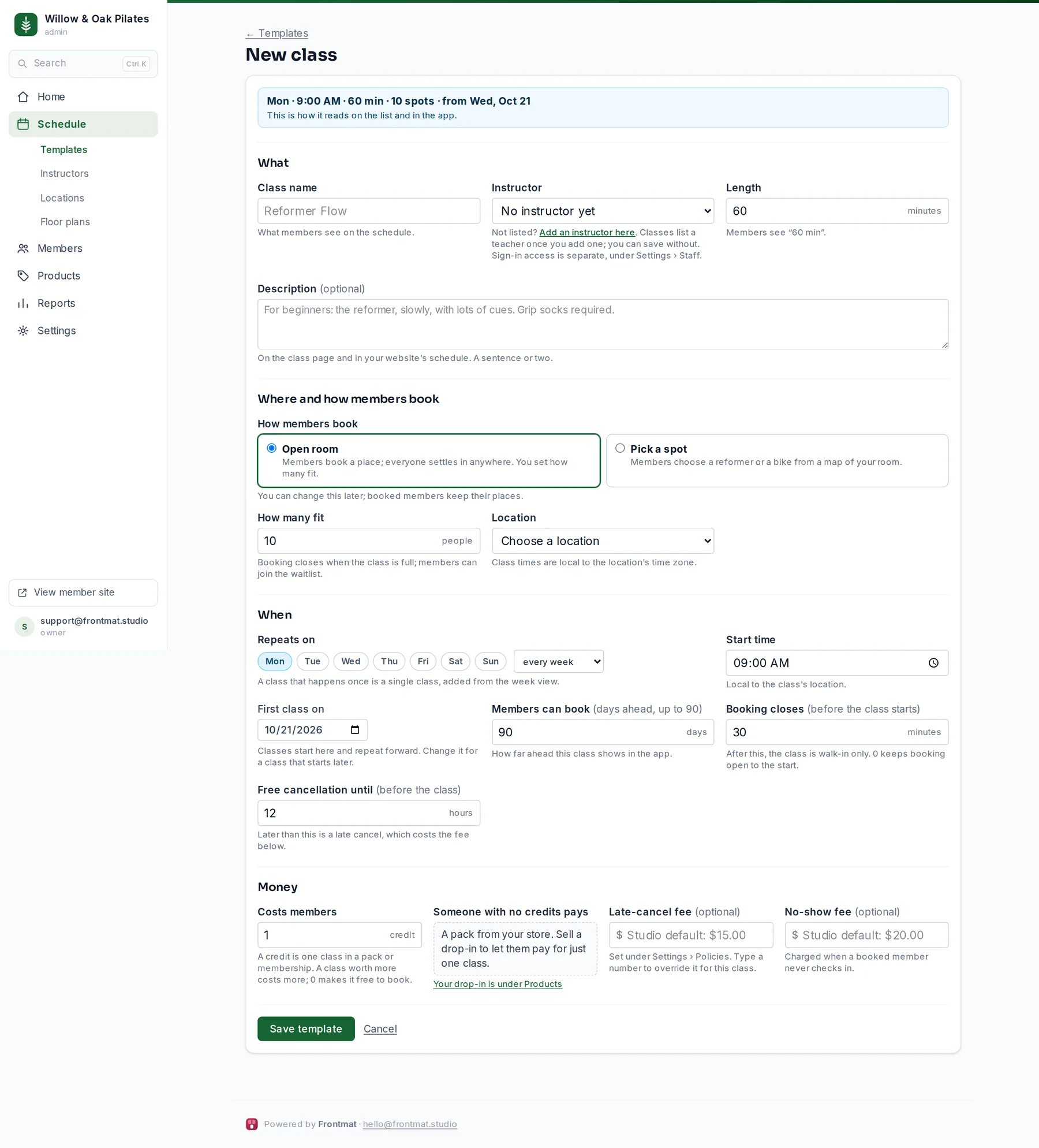
- Open Schedule › Templates and click + New class.
- Under What, type the Class name members will see, pick an Instructor (or use Add an instructor here without leaving the form; you can also save with none), and set the Length in minutes. A Description is optional and shows on the class page and in your website's schedule.
- Under Where and how members book, choose Open room (everyone settles in anywhere, and you type How many fit) or Pick a spot (members choose a reformer or a bike from a map of your room). Pick a Room map, or use Draw a new room right there. With two or more locations, pick the Location.
- Under When, tick the days under Repeats on, choose every week or every 2 weeks, and set the Start time and First class on. Members can book is how many days ahead the class shows in the app, up to 90. Booking closes is how many minutes before the start booking stops; after that the class is walk-in only. Free cancellation until is how many hours before the class a member can cancel without a late-cancel.
- Under Money, set what the class Costs members in credits. One credit is one class in a pack or membership; a class worth more can cost two; 0 makes it free to book. The line beside it says what someone with no credits pays, which comes from the drop-in in your store. The two fee boxes are optional: leave them blank to use the fees under Settings › Policies.
- Click Save template. The message says how many classes went on the schedule and through which date.
Changing a class later
Open it under Schedule › Templates, change anything, and save. Saving updates every future class that has not been edited by hand. A class you moved, canceled, or changed the instructor or capacity on from its own page keeps what you gave it.
If a change would remove a class someone is booked into (a day you unticked, a first day you moved later), that class stays on the schedule and a card lists it with two choices: Cancel it and refund, which gives everyone their credit back and emails them, or Keep it.
Archiving a class
Open the template and click Archive this template. Future classes nobody has booked or edited come off the schedule; classes with bookings stay until you cancel them. Archived templates are listed at the bottom of the Templates page. There is no pause: archive it, and add it again when it comes back.
Good to know
- Before you open, First class on is your opening day, so the whole opening quarter is on the schedule as soon as you save. Dating a class earlier than that is for an open house; the form asks whether to Move it to the opening day or keep it.
- The week view flags two classes at the same time that share a teacher or a room with an overlaps badge, and Home counts them until you fix one.
- A class that happens once is not a template. Add it from the week view (see below).
- Class times are wall-clock times in your studio's time zone, so a 6:00 PM class stays 6:00 PM when the clocks change.