Help · Your studio
Add staff, and what each role can do
Three roles run a studio. Staff run the day: schedule, rosters, members, products and the shared settings. Admins run everything except Billing and owner accounts, which adds Payments and Staff. The owner is the account that created the studio and the only one who sees Billing.
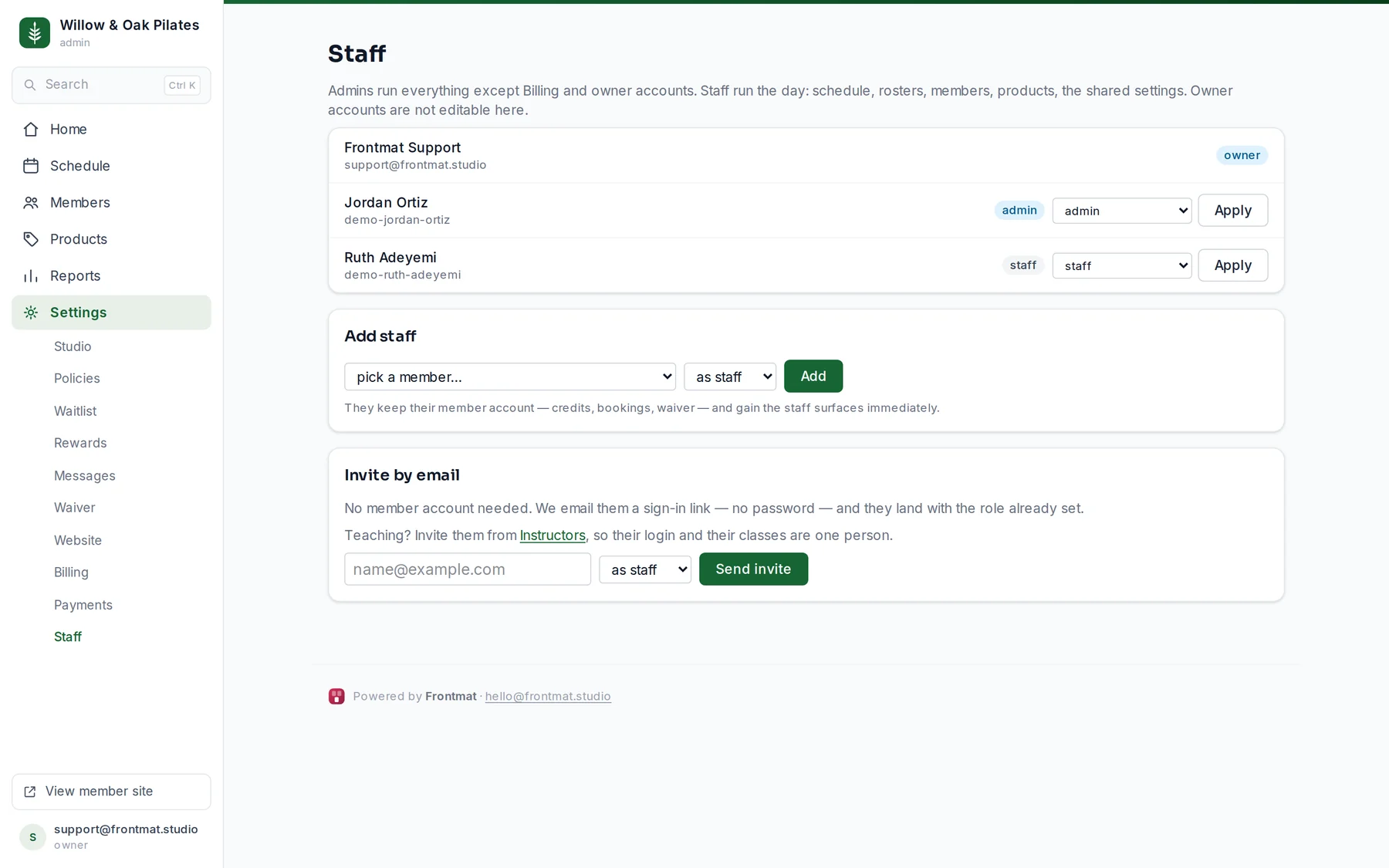
Adding someone
- Open Settings › Staff.
- Someone who is already a member of your studio: under Add staff, pick them, choose as staff or as admin, and click Add. They keep their member account, credits, bookings and waiver, and gain the staff screens at once.
- Someone new: under Invite by email, type their email, choose the role, and click Send invite. They get one email with a sign-in link and land in the admin with the role already set. No password.
- To change a role later, pick staff, admin or member (remove) on their row and click Apply.
Instructors
Teaching? Invite them from Schedule › Instructors instead, so their login and their classes are one person. The row's Invite to sign in makes them staff and keeps their classes under their name. An instructor who only needs to be a name on the schedule needs no sign-in at all.
Good to know
- Owner rows have no controls here. To change which account owns the studio, email hello@frontmat.studio.
- A sign-in link in a staff invite opens the admin, not the member schedule. Staff still reach the member app with View member site.
- One account can be staff at more than one studio, each at its own address.