Sign in, and find your admin again
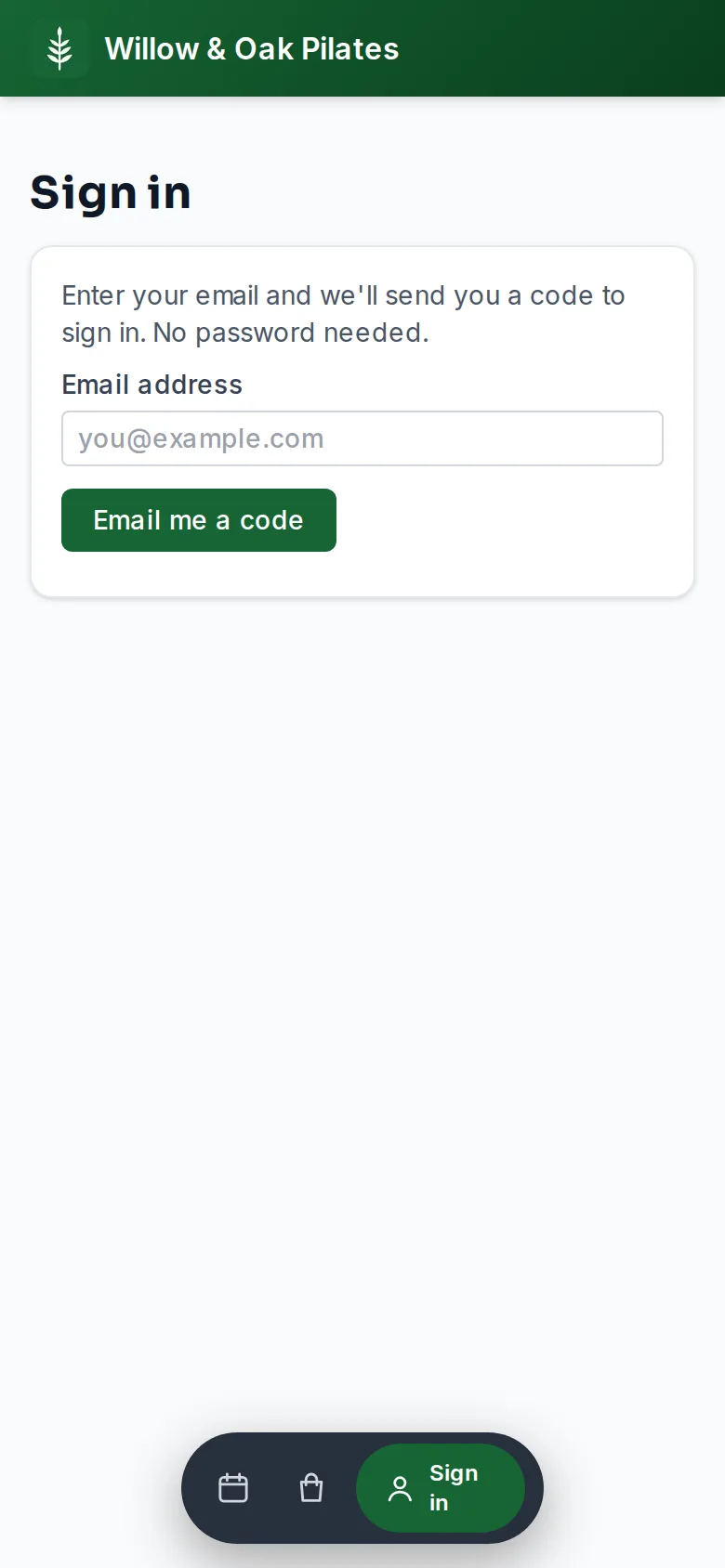
There are no passwords. You type your email, we send you a six-digit code, and you type the code on the same screen. The email also has a link, if you would rather open that. Owners, staff and members all sign in this way.
Your admin's address
Your studio lives at your-studio.frontmat.studio, and your admin at your-studio.frontmat.studio/your-studio/admin. Bookmark the admin on every device you run the studio from. Opening it signed out shows Please sign in to continue; type your email and the code, and you land back on the page you wanted.
- Open your admin address and click sign in.
- Type the email you created the studio with and click Email me a code.
- The email's subject starts with the code, for example 135790 is your Groundwork sign-in code. Type the six digits in the box on the screen and click Sign in. On an iPhone with Apple's Mail app, the code can appear above the keyboard; tap it to fill it in.
If the code does not arrive
- Check spam and promotions. The email comes from your studio's name when you asked for it on your studio's address, and from Frontmat on frontmat.studio.
- On the code screen, send a new code sends another. Use the newest one: a code works for 15 minutes and allows five wrong tries.
- Typed the wrong address? Use a different email is on the same screen. A near-miss of a common address (hmail.com for gmail.com) gets Did you mean under the field, and again on the code screen.
- One address can be sent five codes an hour. After ten wrong codes in a day, codes for that address stop working until the next day; the link in the email still works.
- That link has been used means the link was already opened. Get a new code from the same page.
Why a code, not only a link
A link signs in whichever browser opens it. On a phone that is often your mail app's own browser, and on an iPhone it is never an app added to the Home Screen, so the person who tapped it is still signed out where they started. A code signs in the screen it is typed on: the member's app, the front-desk iPad, your laptop.
The link opens a page with a Sign in button, so the email security scanners that open links before you do cannot use it up. Signing in with the code makes the link stop working, and the other way around.
See your app as a new client
Under View member site in the admin, See it as a new client opens the member app as someone who has never signed in sees it: the schedule, the store, and where it asks them to sign in. A blue bar says you are previewing. Your admin stays signed in in the other tab, and the sign-in form is off, so you cannot sign yourself out by mistake. Exit preview in the bar, or two hours, puts it back.
Two addresses, two sign-ins
Being signed in on your studio's address does not sign you in on app.frontmat.studio, and the other way around. The Sign in link on frontmat.studio takes you to the page that creates a studio; to run yours, use your own address above.
Staying signed in, and signing out
Each phone or computer stays signed in for a year from the last time it was used, so members who come back after a break are still in. The admin and the partner portal ask you to sign in again after 30 days away from them; the member app does not count as a visit.
Account in the member app lists everywhere you are signed in, with the device and when it was last used. Sign out beside one ends it there; Sign out everywhere else ends all but the one you are holding. The admin has no sign-out button of its own: click View member site and use Sign out in the member app's header. On a shared front-desk computer, sign out when you leave.
When a member deletes their account
A member can delete their own account from Account in the member app (Delete your account, at the bottom). It ends their sign-in and clears their name, phone number, notification settings and share link at every studio, along with anything a studio kept about them as a lead. Your records stay: their signed waiver, what they bought and the classes they took, under Deleted member. Someone with a membership still running, upcoming classes or a place on a waitlist is asked to deal with those first. Owners and staff cannot delete their account this way; email support@frontmat.studio.