Help · Schedule
Add instructors, and let one sign in
Instructors are the names on your classes. Adding one takes a name; letting one sign in to see rosters is a separate step, and optional.
Adding an instructor
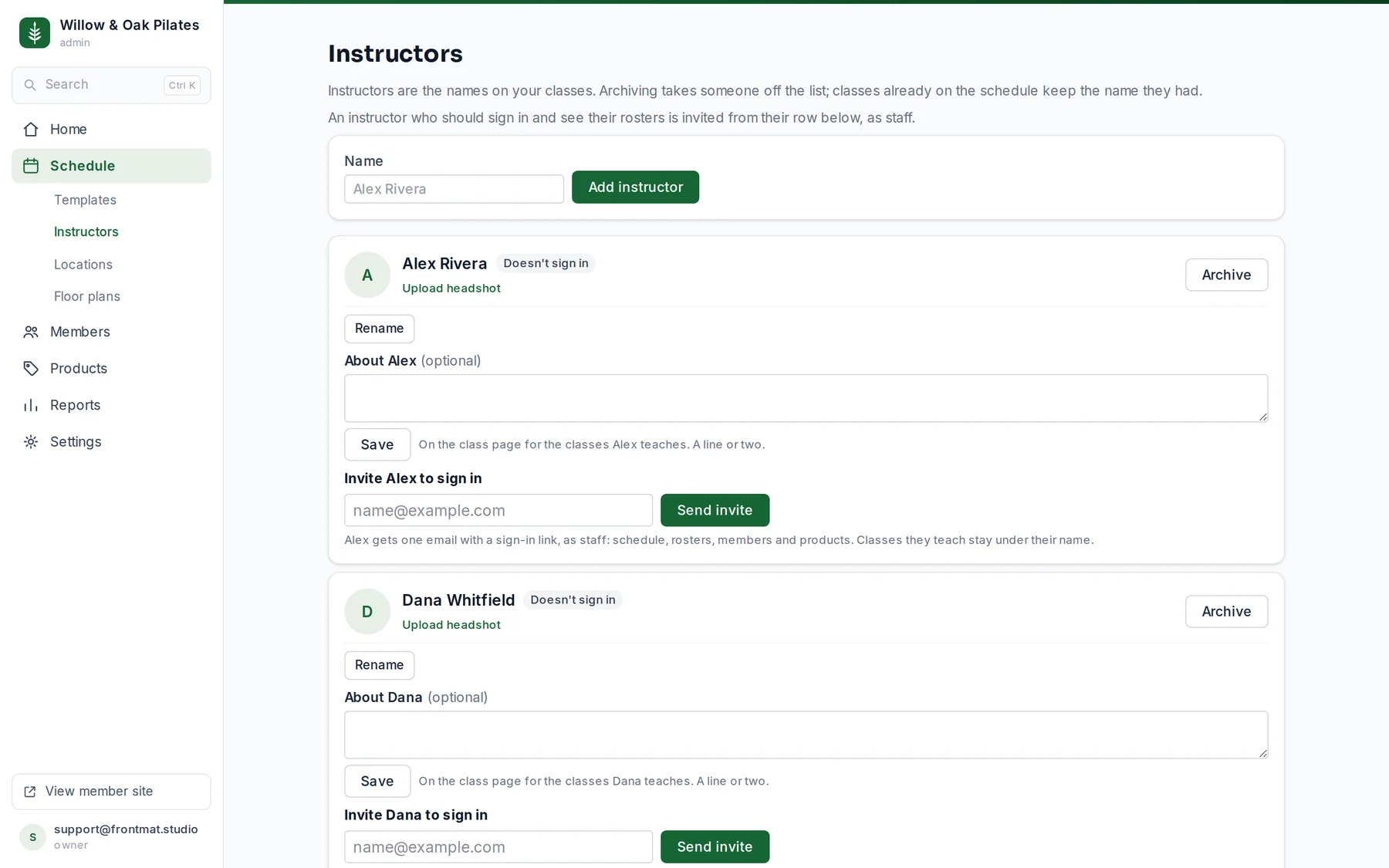
- Open Schedule › Instructors, type their Name, and click Add instructor. You can also add one from a class form with Add an instructor here.
- Put them on a class: pick them under Instructor on the template. For one day only, open that class and use Change instructor / capacity, then Save for this class only.
- Add a headshot with Upload headshot (PNG, JPEG or WebP, under 10 MB). It shows on class cards across the app and your website.
- Write a line or two under About and click Save. It shows on the class page for the classes they teach.
Letting an instructor sign in
On their row, under Invite … to sign in, type their email and click Send invite. They get one email with a sign-in link, as staff: they can see the schedule, rosters, members and products. There is no password; every sign-in is a code we email. Their row then reads Invited until they sign in, with Send the link again if the email went astray. Only an owner or admin can invite.
If the instructor is already a member of your studio, the same invite makes them staff with the account they have.
Renaming and archiving
- Rename changes the name on the schedule and in the app from now on. Classes already taught keep the name they had.
- Archive takes someone off the list and nothing else: classes they taught keep their name, and Restore under Archived brings them back. An archived instructor cannot be picked for a class, and a template still pointing at one shows an instructor archived badge until you pick someone else.