Follow up with leads, without a tool
Every new lead gets three emails from your studio over ten days, unless they book first. It is on from the start, and it needs no tool, no list and no plan: the emails go in your studio's name, and each one stops coming the moment the person books, buys or unsubscribes.
The three emails
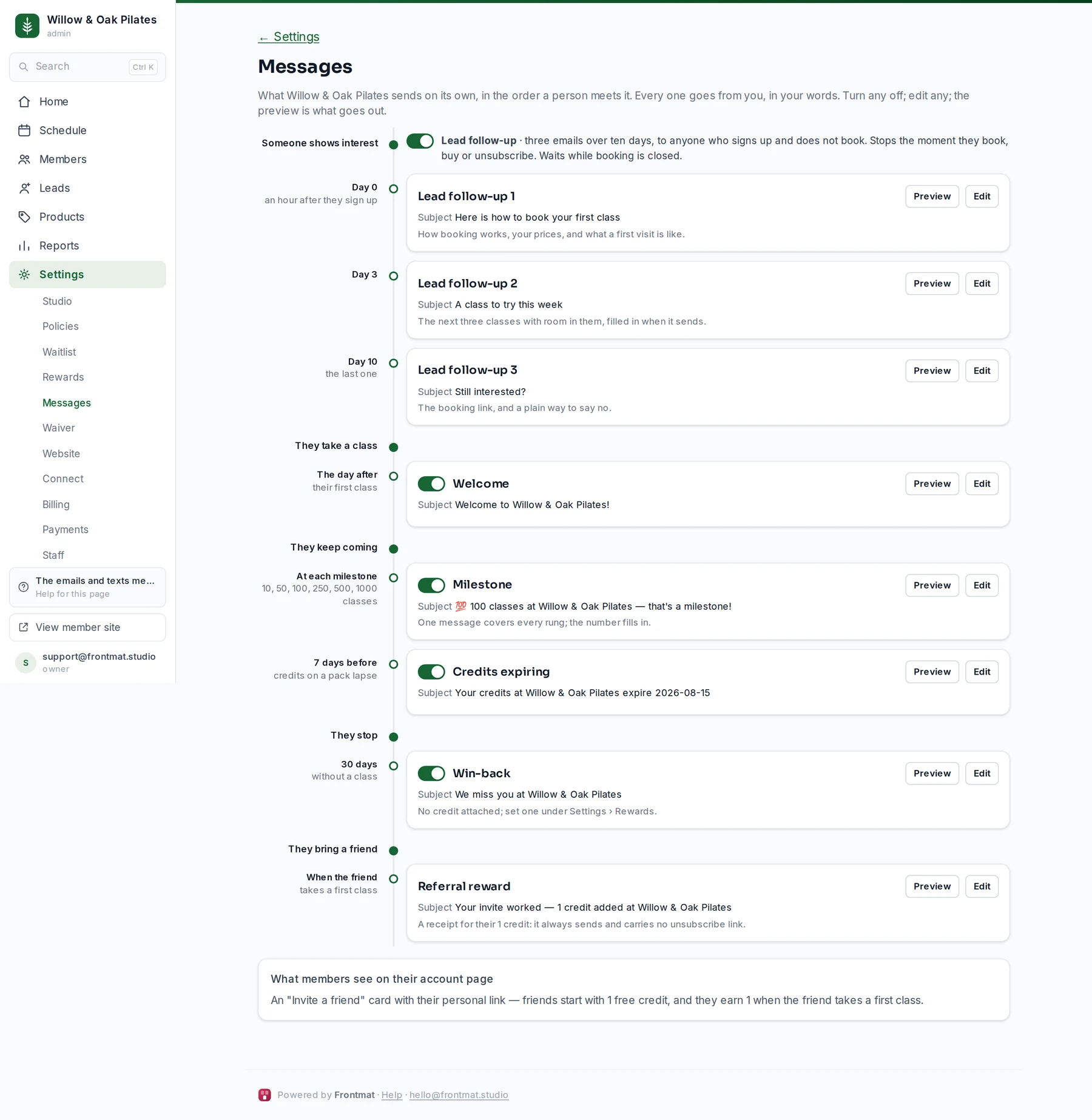
- Day 0, an hour after they appear (in the morning, if that is during your quiet hours): Here is how to book your first class. How booking works, your drop-in price, what a first visit is like. The hour is there so someone you met at the desk can be stopped first.
- Day 3: A class to try this week, with three classes that have room, on different days when there are, filled in when it sends.
- Day 10: Still interested?, the last one, with the schedule link and a plain way to say no.
None goes during your quiet hours (Settings › Waitlist, 9 PM to 7 AM unless you change them); it waits for the morning. Days 3 and 10 count from the day the first email actually went. Each email comes from your studio's name, replies go to your contact email, and the footer says why they are getting it, with an unsubscribe link and your address. Nothing tracks whether an email was opened or a link clicked; their timeline says sent, or could not deliver.
Read them, change them, or turn them off
- Open Settings › Messages. The first group, Someone shows interest, holds the three emails.
- Preview shows each email as it goes out, with your next classes and your price.
- Edit opens the subject and the body. The Insert buttons add their first name, your studio's name, the schedule link, your drop-in price (day 0) and the three classes (day 3). The button, the footer and your address are always added.
- Click Save message. Saving the standard text unchanged keeps the default, so later improvements still reach you.
- The Lead follow-up switch turns all three off (or back on). Leads who were due an email get none.
When it waits
Three emails inviting people to book something they cannot would be worse than none, so follow-up waits while your studio has no waiver, cannot take payments yet, or has not opened booking. Settings › Messages says waiting and why, and so do the Leads list, a lead's page and Home, with the link that fixes it (Connect payments, for example); the emails go once that is done. People on your pre-opening list already get the booking is open email, so for them that counts as the first, and day 3 follows it. A member's guest gets your invitation the day after their class, and that counts as their first; coming again as a guest does not stop the other two.
One person
On a lead's page, Stop follow-up stops it for that person only. Booking, buying or unsubscribing stops it on its own. People who came to you before Leads existed are on the list, but were never sent any of the three.
Until you have opened Settings › Messages once, Home says Lead follow-up is on with a link to read the three emails.