Add a single class, move a class, or cancel one
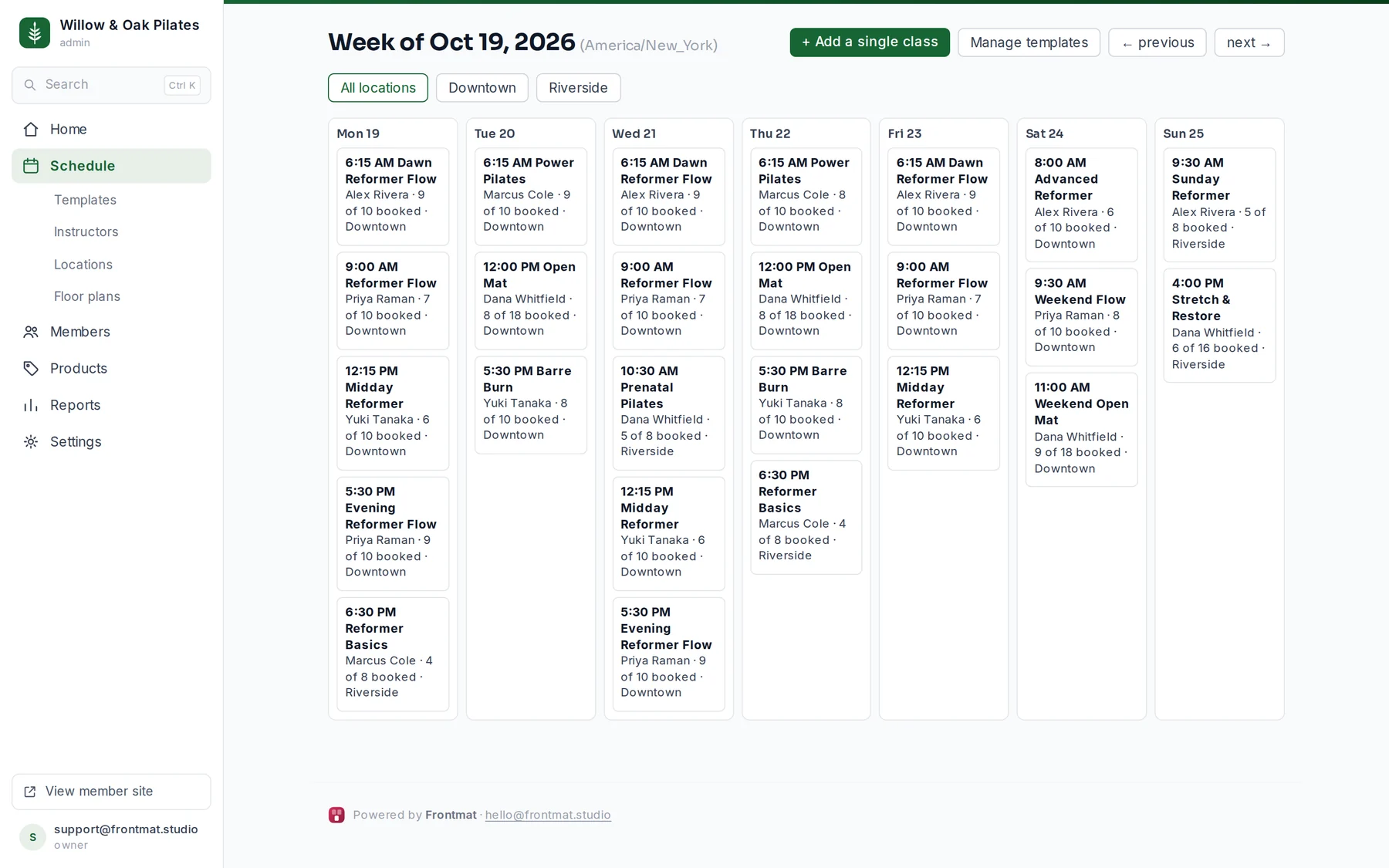
Templates make classes that repeat. For an open house, a workshop, or any class that happens once, add a single class from the week view. Moving and canceling happen on the class's own page.
A class that happens once
- Open Schedule and click + Add a single class. Before you open, an empty week also offers Add a class before opening.
- Give it a Class name, the Date, the Start time, and the Length. Pick an Instructor if one is teaching it.
- Set How many fit for an open room, or choose one of your room maps under Room so members pick a spot. Set what it Costs members; 0 makes it free to book.
- Click Put it on the schedule.
A single class lives on the week it belongs to and never in the Templates list. It uses the usual booking settings: members see it up to 90 days ahead, booking closes 30 minutes before the start, and free cancellation ends 12 hours before.
Moving a class to another time
Open the class from the week view. Under Move this class, set the New start and click Move class. A class with bookings cannot be moved, because the people booked chose that time: cancel it instead and they get their credits back. A moved class counts as edited by hand, so a later change to its template leaves it alone.
Canceling a class
On the class page, click Cancel this class, then Cancel the class to confirm. Everyone booked gets their credit back and an email saying the class was canceled; someone who paid a drop-in gets it back as credits. Any late-cancel or no-show fee pending on the class is voided and the waitlist is cleared.
The class stays on the week with a canceled badge. If you canceled the wrong one, Restore this class puts it back, but it does not re-book anyone.
Good to know
- Adding a single class before your opening day is fine, and the form says so: it shows in the app and on your website now, which is usually the point of an open house.
- To change a single class's name or date after saving, cancel it and add it again.
- On the class page you can also change the instructor or capacity for that day only, with Save for this class only.