Find anything with the search box
The Search box at the top of the sidebar finds members, pages, class templates, products and guests, and offers the few actions you do most. Press Ctrl K (⌘K on a Mac) anywhere in the admin to open it; on a phone, tap the search icon in the header.
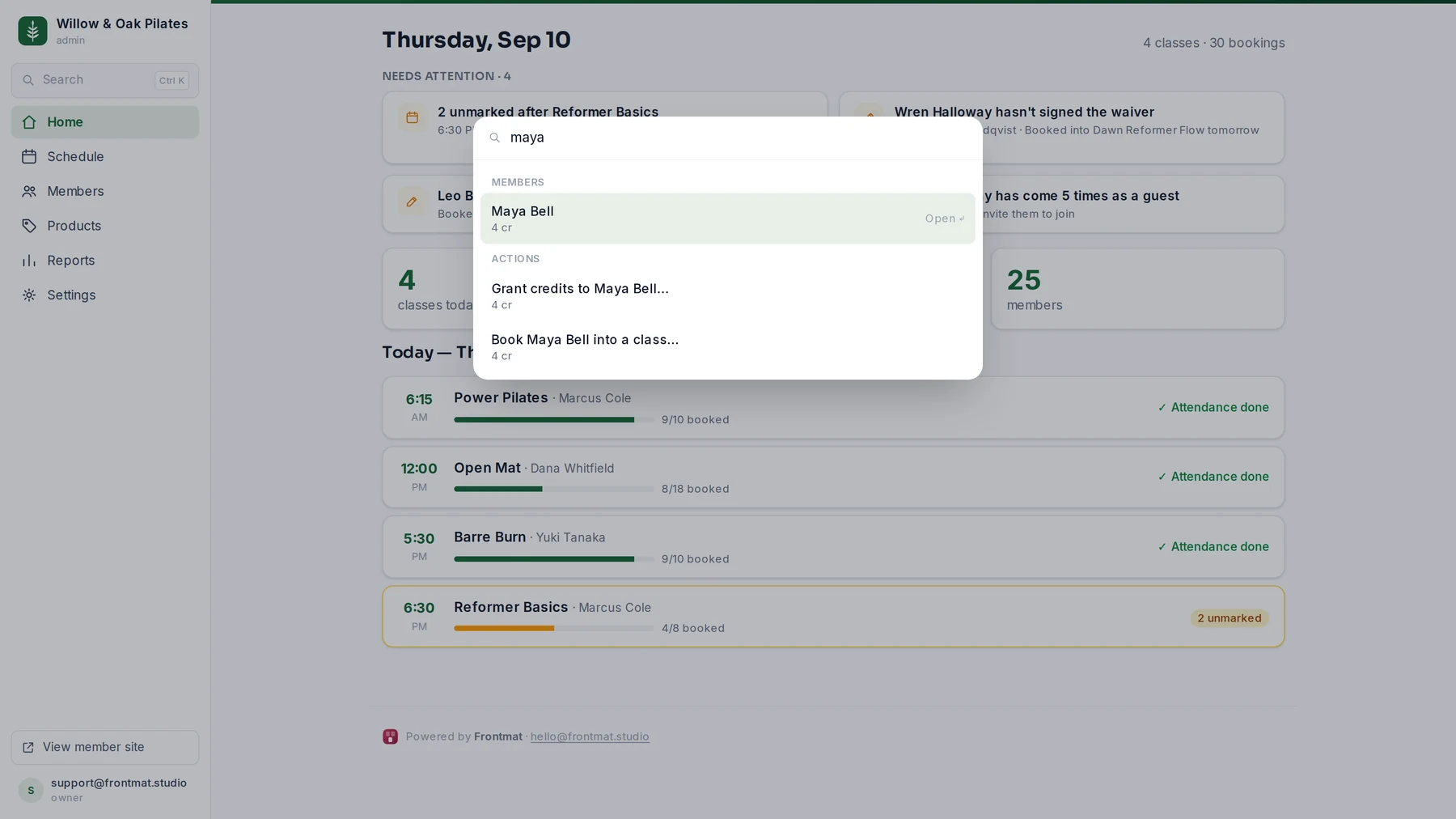
- Start typing. A member row shows their email and credits, so two people with one name are easy to tell apart. Pages, templates and products come up by name.
- Pick a member and you get Grant credits to … and Book … into a class… beside their record.
- With nothing typed, the box lists the pages and the actions: Add a walk-in to the next class opens the next roster, and Review failed fees opens Reports.
The box never changes anything by itself. Every action lands on the page where it happens, with the right field already focused, so there is always a button to click before anything is saved.
On a phone
The bottom bar has Home, Schedule, Members and More. More opens Products, Reports, the schedule setup pages, every Settings section, and View member site.
Signing out
The admin has no sign-out button of its own. Open View member site and use Sign out in the member app's header. Signing back in is the same email link as always.