From sign-up to booking live
This is the order the product itself follows: the welcome wizard's three steps, then the screens the wizard names. A studio that is open takes about an hour to set up; a studio that has not opened yet does the same, and sets its opening day first. Nothing here needs a card for Frontmat, a card reader, or anything printed.
Have handy: your logo and brand color; the week's classes (name, days, start time, length, who teaches); how the room is laid out if members pick a spot; your prices; your waiver text; and for Stripe, your legal business name, EIN or SSN, bank routing and account numbers, and a phone that takes a text code. Switching from another system? Export your members now; the import is step 10.
1. Sign in and name your studio
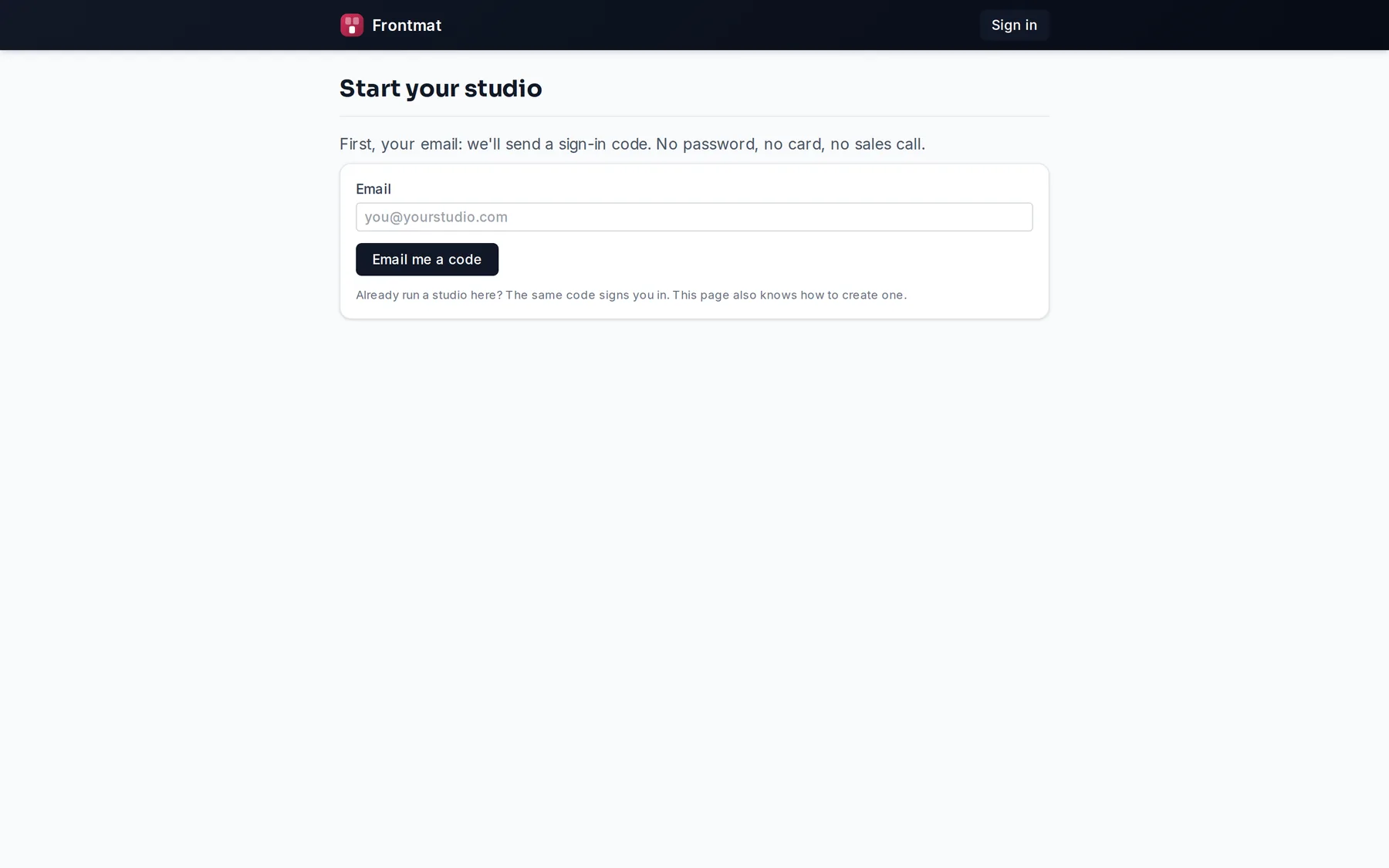
- Open frontmat.studio/start and type your email. Type the code we email you; there is no password.
- Type your Studio name. The Web address under it becomes your members' app address, your-studio.frontmat.studio, for good, so read it back before you continue.
- Click Create my studio. You land in your own admin, on the welcome wizard, with five starter credits so you can book yourself in later.
2. Make it yours
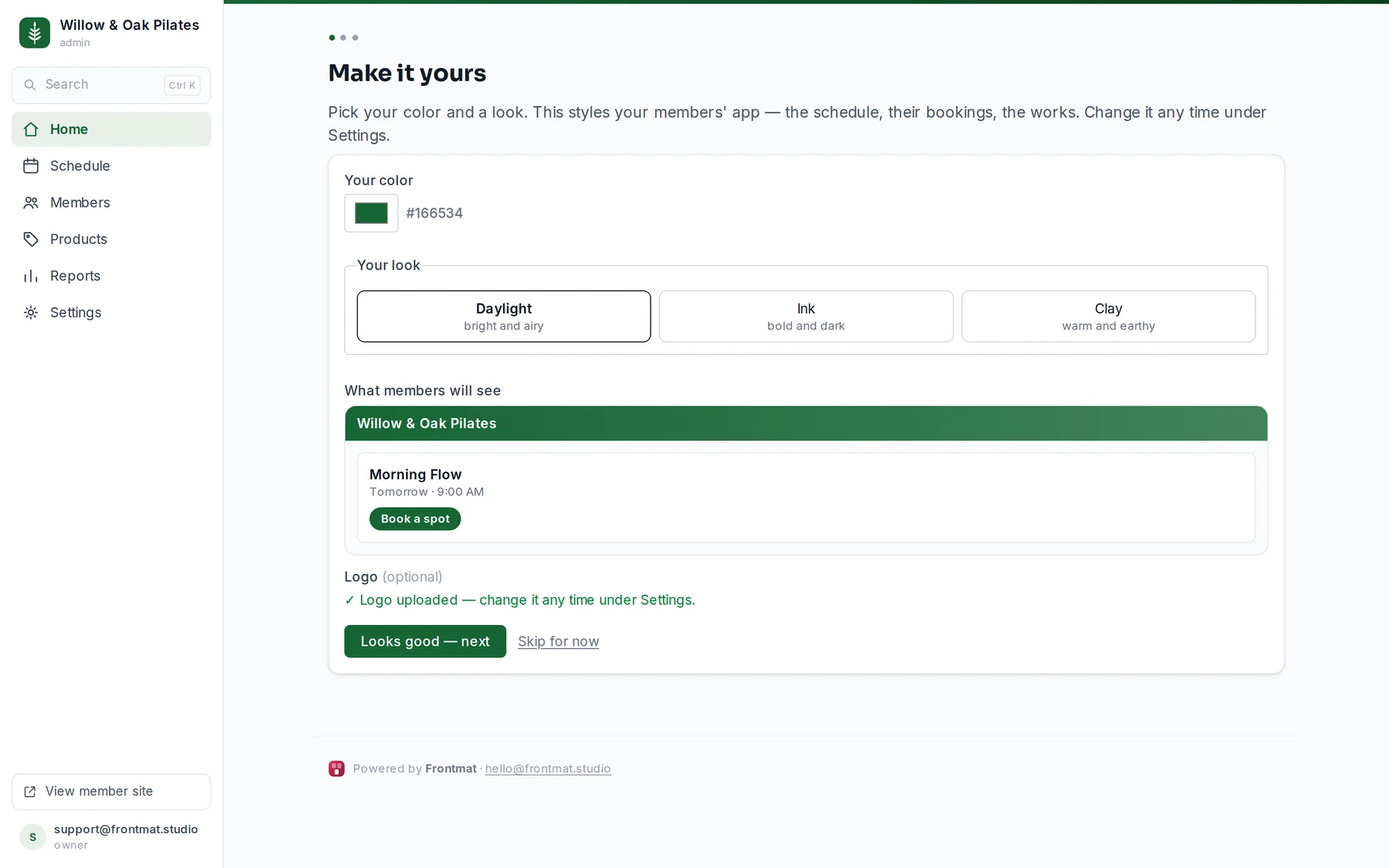
Wizard step 1. Pick Your color and Your look (Daylight, Ink or Clay); the preview on the right is your members' app. Drop in a Logo if you have one; it becomes the icon on their phones. Looks good, next. All of it can change later under Settings › Studio.
3. When you open, and your first class
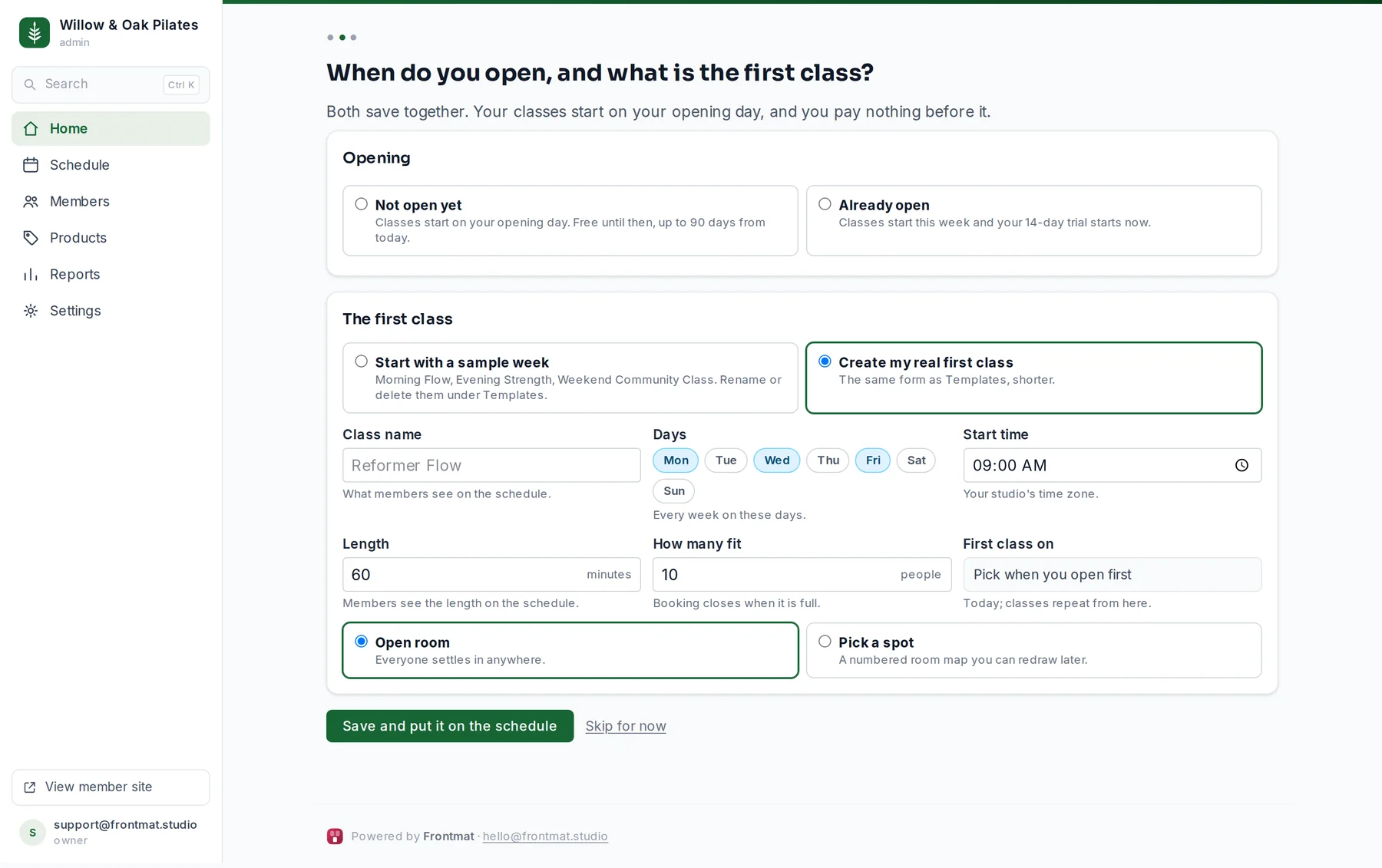
Wizard step 2. Choose Not open yet with your Opening day, the day of your first class, or Already open. Then either Start with a sample week (three open-room classes you can rename or delete) or Create my real first class: the name, the days, the start time, the length, how many fit, and whether members settle in anywhere (Open room) or choose a reformer or bike (Pick a spot). One button, Save and put it on the schedule, saves the day and the class together.
Before anything has a time, check the time zone under Settings › Studio. It was taken from your browser.
4. The rest of the week, your teachers, your room
- Schedule › Templates › + New class for each class that repeats. A template is a class that repeats: change it once and every future class follows. The whole form is in Add a class that repeats.
- Schedule › Instructors: add every teacher by name. Put them on their templates now or later. A teacher who should see rosters gets a sign-in from their row.
- Schedule › Floor plans, for reformers, bikes or any room with numbered places: draw the room, then point the template at it. Count the spots as you draw; a founding tier's cap comes from that number.
- Open Schedule and look at the week. Before opening it starts on the opening week, which is already there.
5. Payments
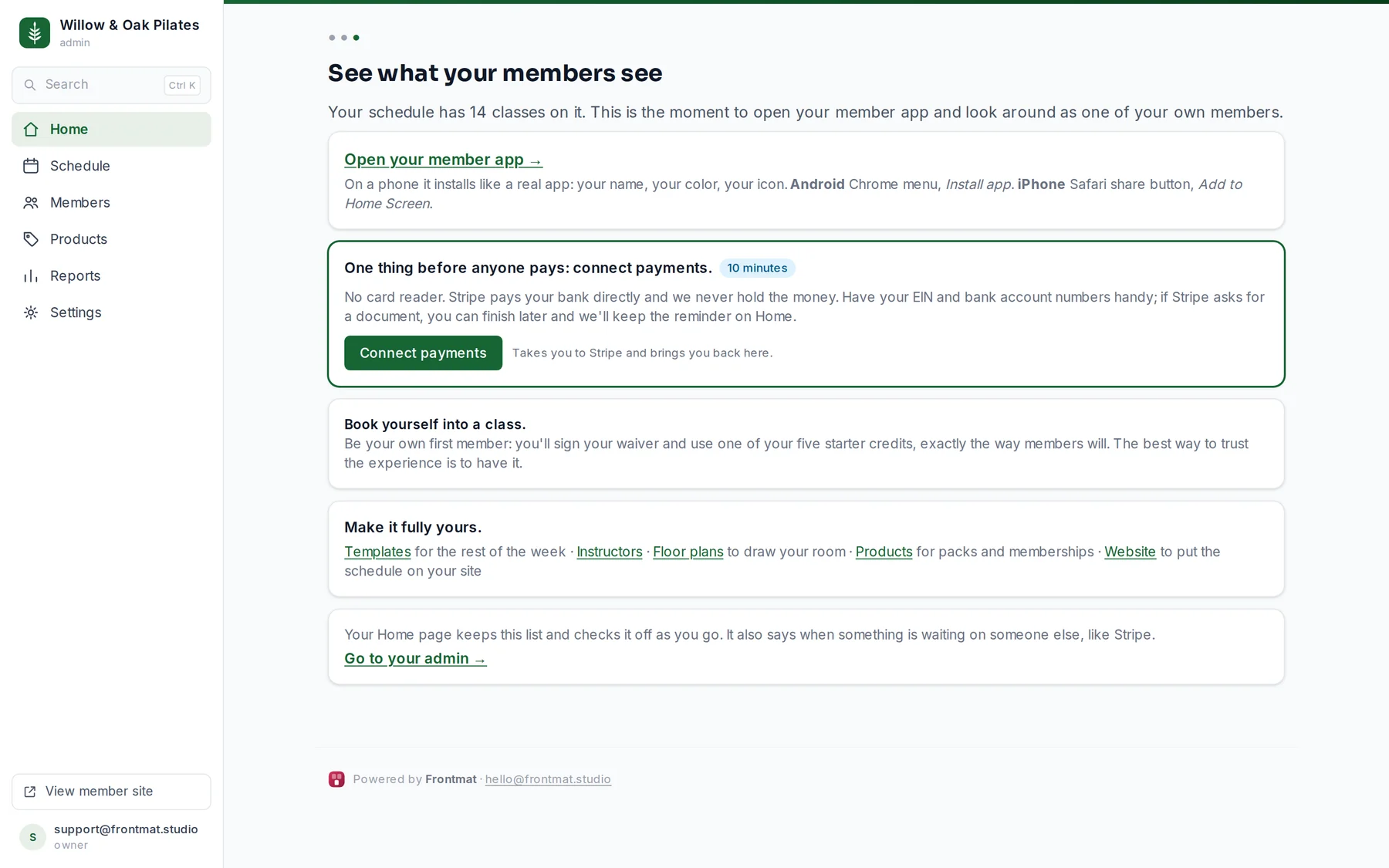
Wizard step 3, or Settings › Payments: click Connect payments. Stripe asks for your business details and bank numbers and brings you back; ten minutes, no card reader, and Stripe pays your bank directly. Nothing sells until this is done, so do it now even if Stripe needs a day to verify: products save in the meantime and go on sale the moment charges are on. Connect payments has what to expect.
6. Prices
Products, three times: a drop-in (one purchase, one class credit), a class pack (a set of credits, with an optional expiry), and a membership (a price per month, with classes per month or unlimited). Three products is enough to open. A studio that has not opened can add a founding membership that bills on opening day with a cap of spots. Sell a drop-in, a class pack, or a membership.
7. Your waiver
Settings › Waiver: paste your text, in your own words, and click Save waiver. Members sign it once, on their phone, before their first booking. Nobody can book until it is saved. Frontmat does not write legal language for studios; your insurer or your old system's waiver is the usual source.
8. Your website
Settings › Website: save your site's address, copy the code, and paste it where the schedule should go on your site. On your site turns Live on its own once the page has been opened. If a designer looks after your site, send them the snippet or link them as your designer. Put your schedule on your own website.
9. The app on your phone, and your first booking
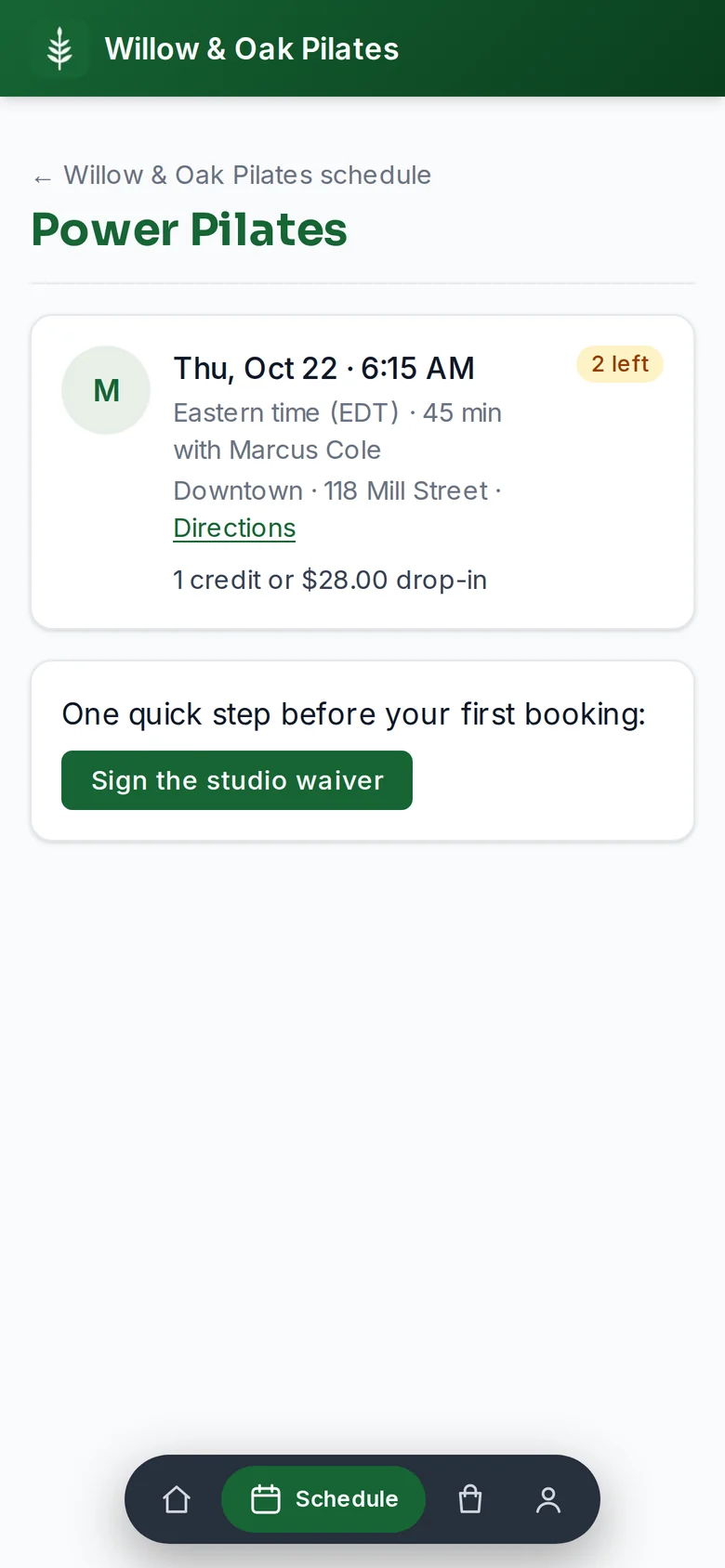
Open your-studio.frontmat.studio on your phone and add it to the home screen (iPhone: Safari share, Add to Home Screen; Android: Chrome menu, Install app). Then be your own first member: book yourself into a class. You sign your own waiver and spend a starter credit, exactly the way members will. That is what every member of yours will see.
10. Your members
Switching: Members › Import, choose the export from your old system, read the preview, confirm. Members hear nothing until you send the one message, and their credits are waiting when they sign in with the same email. New studio: put your app address in your bio today. Before you open, the app collects emails and sends one message the day booking opens.
What Home does from here
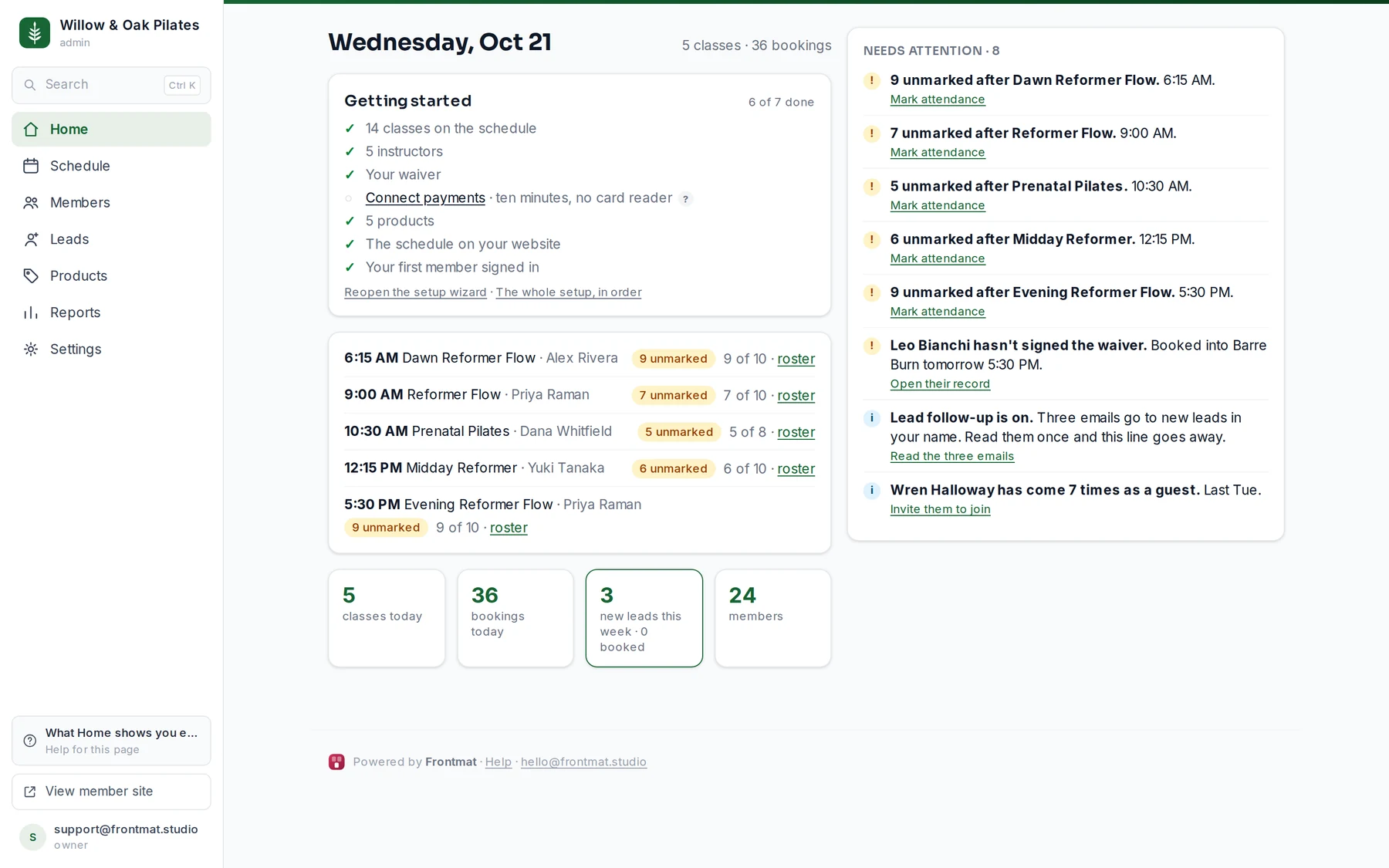
Your Home page keeps this list as Ready to open (or Getting started) and ticks each item off as it becomes true: your opening day, your first class, your instructors, your waiver, payments, your packs and memberships, the schedule on your website, your first member signed in. It also says when something is waiting on someone else, like Stripe. On your opening day the banner goes away by itself and Home shows each day's classes.