Your waiver: write it, change it, see who signed
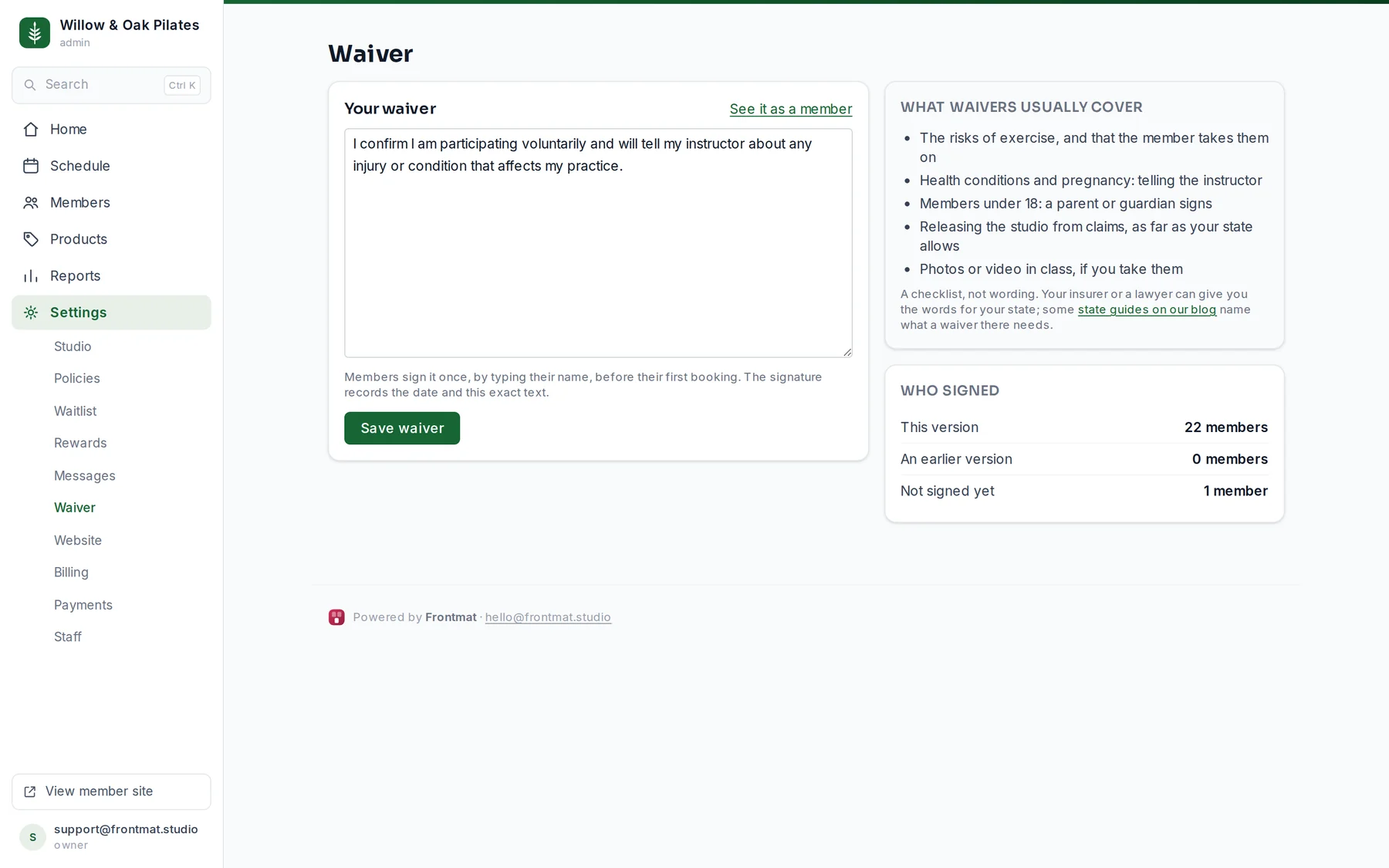
Members sign your waiver once, on their phone, before their first booking. The words are yours: paste the text your insurer or your old system gave you. Frontmat does not write legal language for studios, and never will.
- Open Settings › Waiver, paste your text into the box, and click Save waiver.
- See it as a member opens the page members see, with signing switched off.
What members see
Their first booking shows One quick step before your first booking and Sign the studio waiver. The waiver page shows your text, asks them to type their full legal name, and records the name, the date and the exact text they signed. Joining a waitlist asks for it too. Guests do not sign in the app: the desk ticks Mark waiver signed on the roster at the door.
Changing it
When you edit the text after members have signed, the page says how many signed the old one and asks:
- Ask them to sign this version: at their next booking, once. Their bookings stay.
- Keep their signatures: only members who have not signed see the new version.
A fix to a typo keeps signatures; a new clause usually asks everyone again. The Who signed card counts this version, an earlier version, and not signed yet.
Where unsigned members show up
- Home, under Needs attention, for anyone booked into a class in the next two days without a signature.
- The Members list, with the No waiver filter and a red badge on the row.
- The roster, where a guest row shows waiver unsigned until it is ticked.
Good to know
- Nobody can book until the waiver is saved, however the rest of the studio is set. Before you open, Home says so.
- A few states want particular words in a waiver; our state guides say which.