Put your schedule on your own website
Your schedule can live on your own site. People browse, book, buy and manage their account without leaving it. One snippet works on every builder, and Settings › Website says when it has been seen on your page.
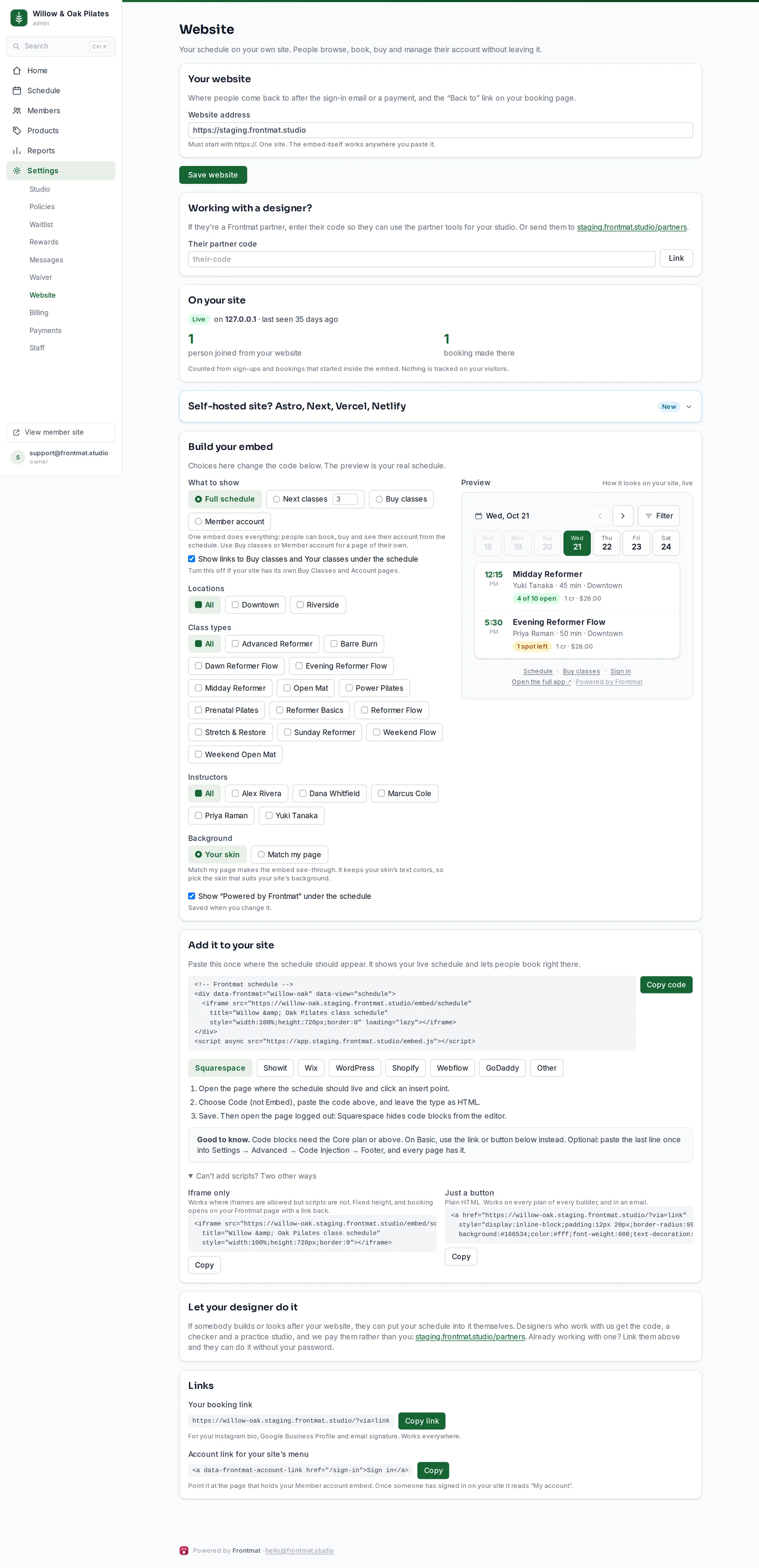
- Under Your website, type your site's address with https:// and click Save website. It is where people come back to after the sign-in email or a payment, and the Back to link on your booking page.
- Under Build your embed, choose what to show: the Full schedule (people can book, buy and see their account from it), the Next classes, Buy classes, or Member account for a page of its own. Filter to a class type, an instructor or a location if the page calls for it. The preview is your real schedule.
- Under Add it to your site, click Copy code, pick your site builder, and follow its three steps. Paste the whole snippet; the last line is what lets people book without leaving your page.
- Open your page logged out and reload. On your site switches from Not seen yet to Live on its own, and later counts the people who joined and booked from your website.
Builder notes
- Squarespace: a Code block (not Embed), HTML type. Code blocks need the Core plan or above; on Basic, use the button below instead.
- Showit: an Embed Code element, sized to the canvas and about 800px tall. The canvas shows a placeholder; publish and look in a browser.
- Wix: Embed HTML. Wix runs the code in its own box, so booking opens on your Frontmat page and comes back; a Custom Element on premium plans keeps it inside the page.
- WordPress: a Custom HTML block. WordPress.com needs the Business plan or above; self-hosted WordPress works on any plan.
- Shopify, Webflow, GoDaddy and anywhere else that takes HTML: the steps are on the page.
- A site you host yourself (Astro, Next, Vercel, Netlify) may send a content-security policy that blocks the frame silently. The two lines under Self-hosted site? go in your site's headers.
Can't add scripts?
Under Can't add scripts? Two other ways: an Iframe only version for sites that allow frames but not scripts, and Just a button, plain HTML that works on every plan of every builder and in an email. The Links card has your plain booking link for an Instagram bio, a Google Business Profile or an email signature.
Let your designer do it
If someone builds or looks after your site, they can put the schedule in themselves. Designers who work with us get the code, a checker and a practice studio. If yours is a Frontmat partner, enter their code under Working with a designer? and they can use the partner tools for your studio without your password. They never see your members, your bookings or your money.
Before you open
The embed says Opening with your date, shows the opening week in gray when booking is not open yet, and collects first-pick emails. Nothing to switch on: on the day booking opens it fills in by itself.